
Multi-factor authentication
Multi-factor authentication (MFA) is used throughout the B.C. government to ensure the right people access the right data and services.
Last updated on
How it works
MFA uses more than one verification method to confirm your identity. Instead of only asking for “something you know,” MFA also asks for “something you have.”
Something you know
Usually this is a memorized password.
Something you have
This can be a secure device like a physical security key, a virtual token or an app on your phone. You might be asked to answer an automated phone call or enter a one-time passcode from an email or text message.
Why it’s important
MFA protects government resources from threats like phishing, credential theft and malware. It helps to identify that a real person is requesting access instead of a bot or hacker.
You may be prompted to register MFA during initial account creation, or the first time you visit a resource. You may also have to verify your MFA when signing in to an account for the first time on a given day, on a new device, when accessing sensitive resources or if unusual activity is detected.
Using MFA in the B.C. government
The BC Public Service requires MFA for anyone accessing government’s Microsoft Entra cloud services (Microsoft M365, Microsoft Teams, SharePoint Online, Exchange Online, OneDrive, etc.)
If you work for the B.C. government, you have direct access to B.C. government resources using an IDIR account, or if you are a contractor, partner or other collaborator with a Microsoft account, you should already be registered for MFA. Read more on the intranet.
If you work in the broader public sector or for a Crown corporation, you should already be registered with a compatible MFA system by your organization.
If you are not registered for MFA with any organization and you do not have a Microsoft account, you will need to register for BC government MFA.
Registering the Microsoft Authenticator app
Microsoft provides a smart phone application called “Authenticator” associated with your email address, which you can download on your mobile device.
The first time you attempt to access a B.C. government resource which requires MFA, you will be prompted to verify your email address and install the Microsoft Authenticator app on your mobile device.
Instructions
1. Enter your email address and click Next.
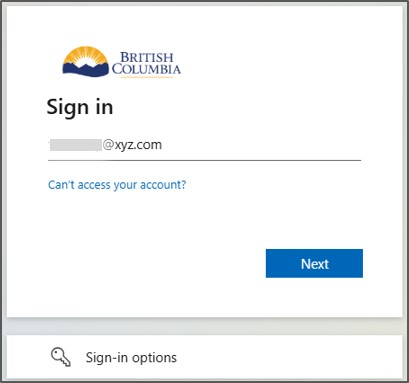
2. Select Send code.
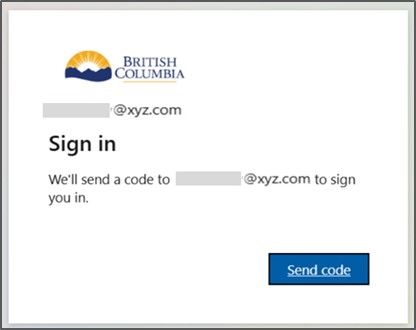
3. Retrieve the code from your email, enter it and click Sign in.
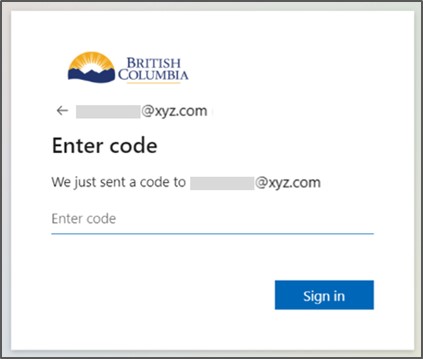
4. You’ll be asked to provide additional information. Click Next.
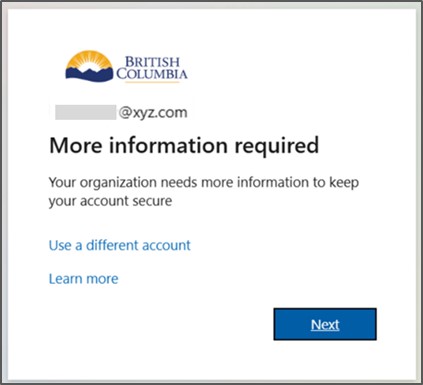
5. You will see a prompt to set up the Microsoft Authenticator app. Download the app on your mobile device. Then click Next.
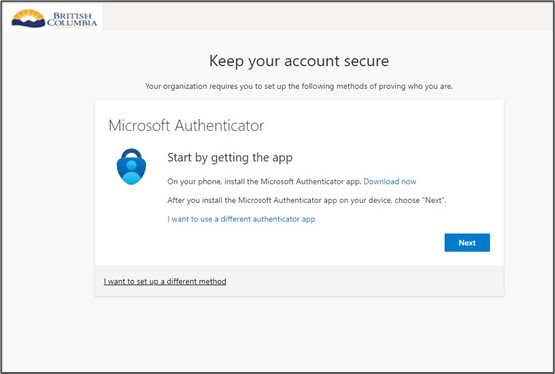
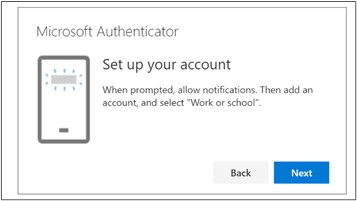
6. Follow the instructions to allow notifications when prompted and click Next.
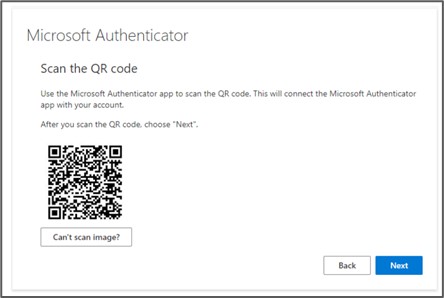
7. A QR code will be displayed on the screen. Scan it using your mobile device’s camera. Then click Next.
If you can’t scan the code, click Can’t scan image? for a code and URL that can be manually entered into your mobile device to add the account.
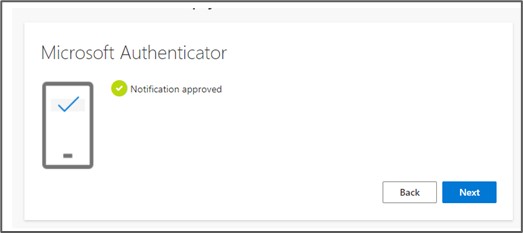
8. Enter the number that appears on your computer screen into the Authenticator app notification to complete the registration process.
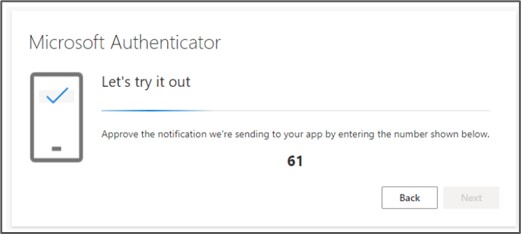
9. Click Next.
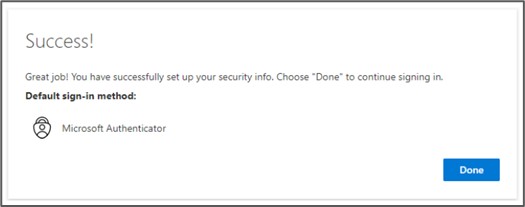
10. If you’ve successfully registered the app, the “Success!” registration message will appear. Click Done to proceed to your resource.
Registering with phone call verification
This method is typically used as a backup, or when you are unable to set up or use the Authenticator app.
If you register with this method, you will receive a one-time passcode by email for verification every time you sign in to a B.C. government resource.
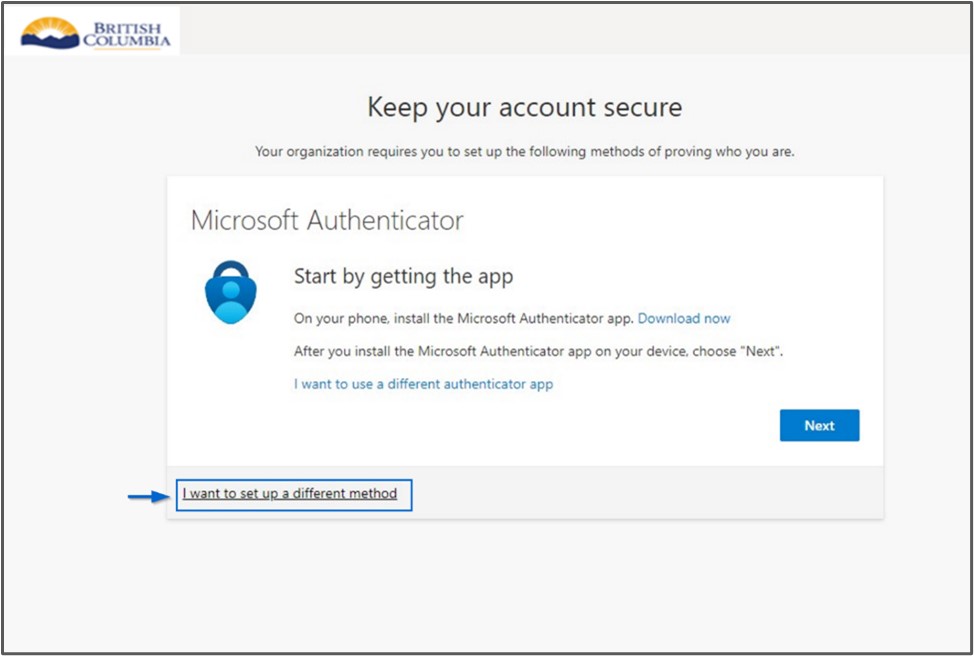
1. When you are prompted to set up the Microsoft Authenticator app, click I want to set up a different method.
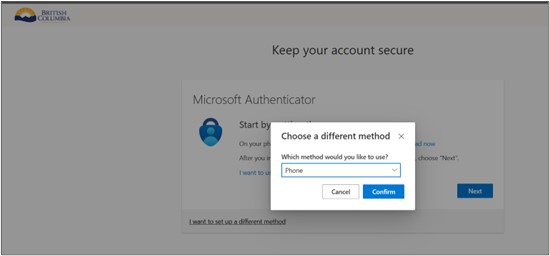
2. Choose Phone as your authentication method, then click Confirm.
3. The page will refresh for you to enter your phone number and click Next.
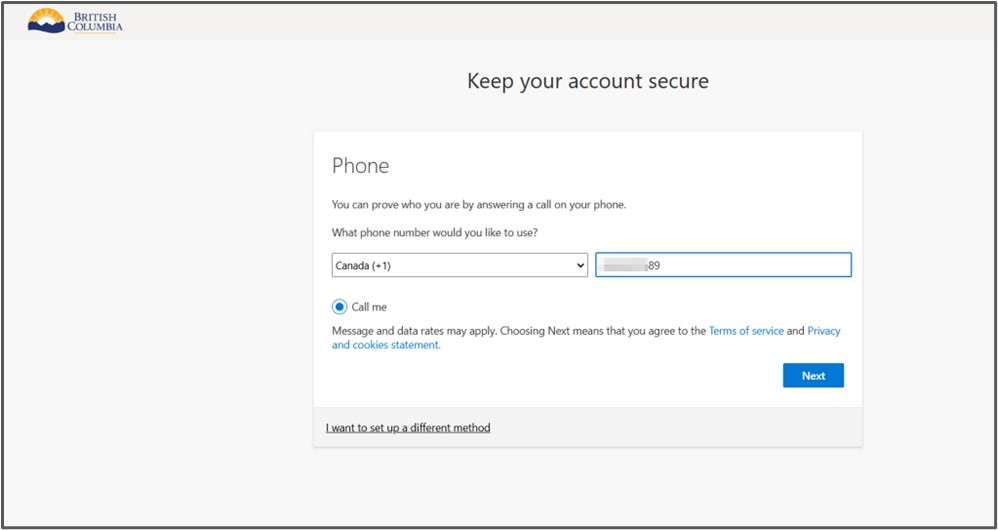
4. You will then receive an automated call.
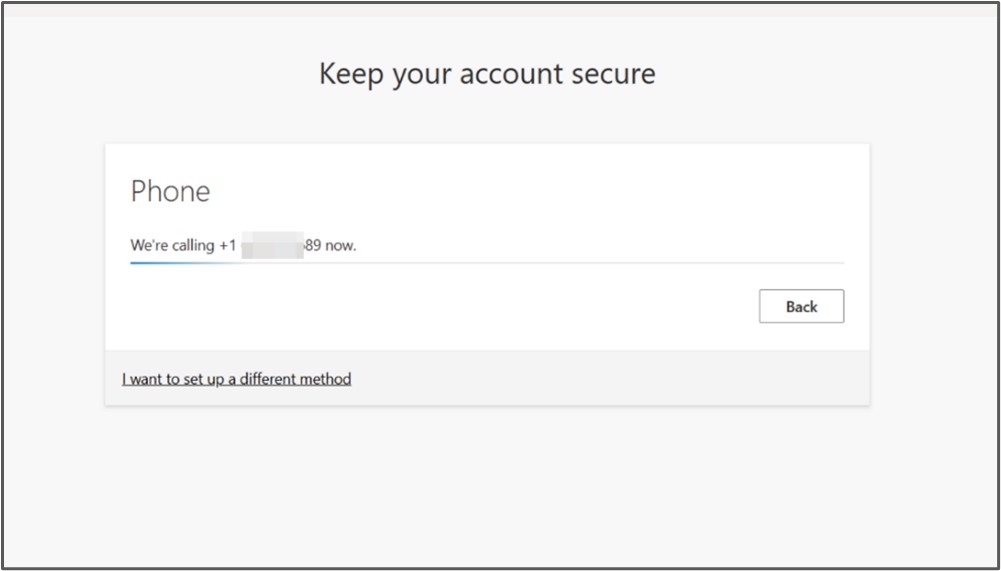
5. When you answer the call, an automated message will provide instructions to complete your phone registration. Confirm the call as instructed, then select Next.
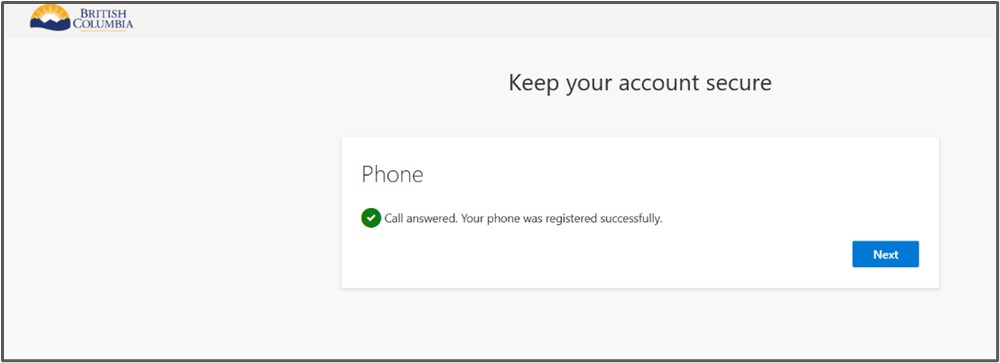
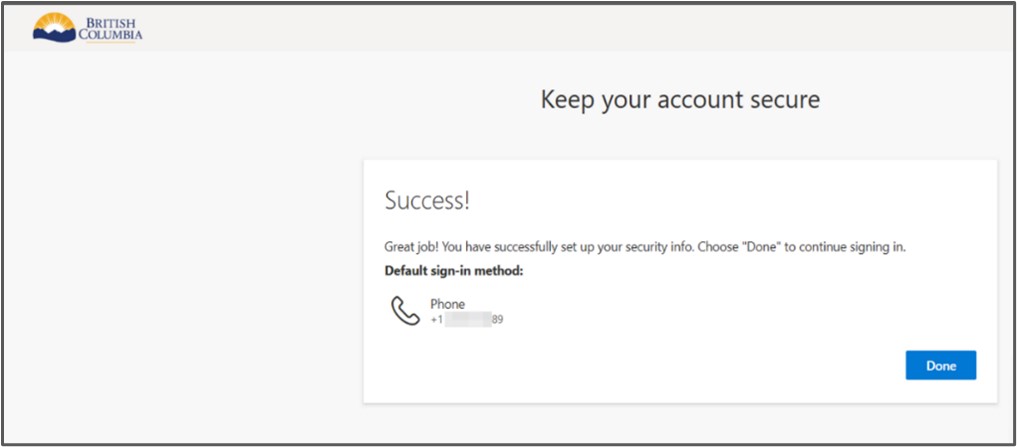
6. If you’ve successfully registered your phone number, the “Success!” registration message will appear. Click Done to proceed to your resource.
Authenticating your identity with MFA
Now that you’ve successfully registered, you can use your app or verified phone number to confirm your identity when prompted.
Using the app
When you are prompted to confirm MFA, you will see the following on your computer or other device’s web browser and your mobile device:
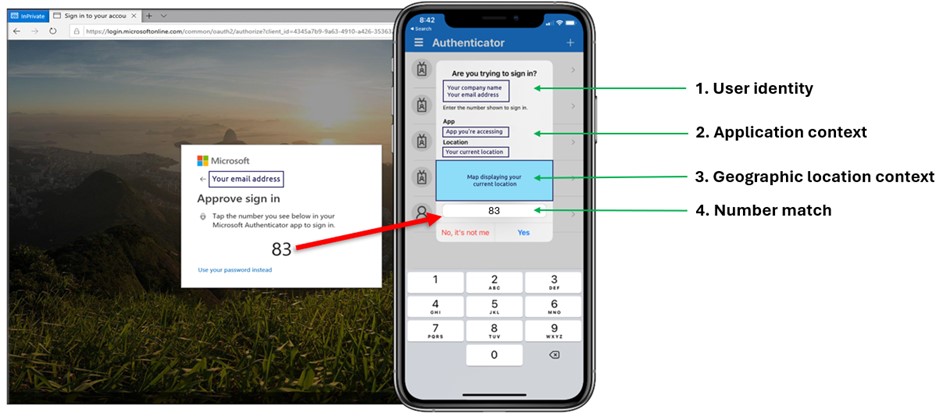
- User identity: Shows you which account you are using
- Application context: Shows you which application you are signing into
- Geographic location context: Shows your sign-in location based on the IP address of the device you are signing into
To approve sign-in using the Authenticator app, type the number from your web browser into the app and press Yes.
Using a phone number
When you are prompted to confirm MFA, Microsoft’s system will call the phone number you registered.
A system generated voice message will play. Follow the instructions to approve your sign-in.
Best practices and support
To ensure your MFA device stays secure:
- Enable security features like biometric or PIN locks
- Regularly update your authentication app and your device’s operating system
- Avoid using public wifi when accessing sensitive resources
You only have to register for MFA once, but it’s highly recommended that you register at least 2 methods (like the authentication app and a phone number). Having more than one method ensures you can still access B.C. government resources if one of your methods is unavailable.
If you need to use your second registered method, click “I can’t use my Microsoft Authenticator app right now” when you’re asked to authenticate.
Technical issues or error messages
If you encounter an error message while on an unfamiliar network, device or browser, switch to a trusted version.
If you suspect your password is incorrect or compromised, change your password immediately.
Managing settings
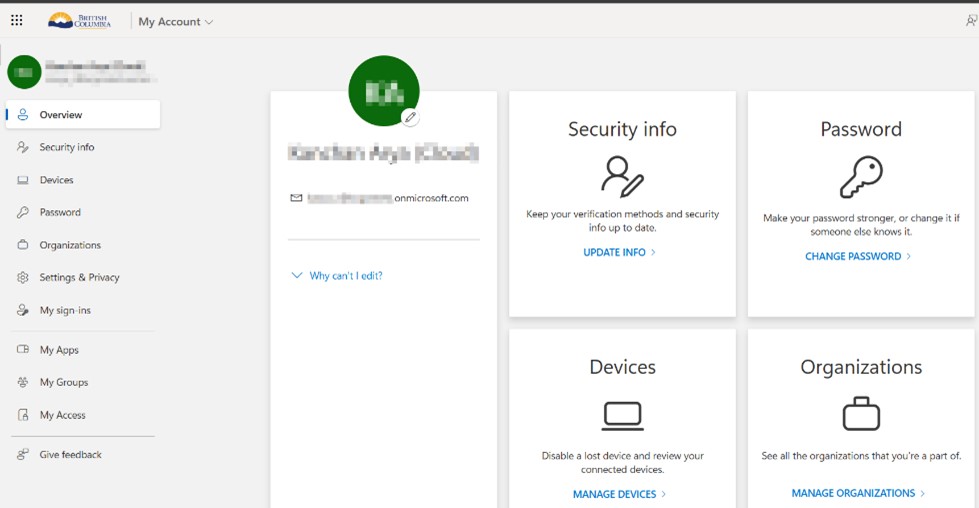
To manage your MFA settings, log in to https://myaccount.microsoft.com and click UPDATE INFO in the “Security Info” tile.
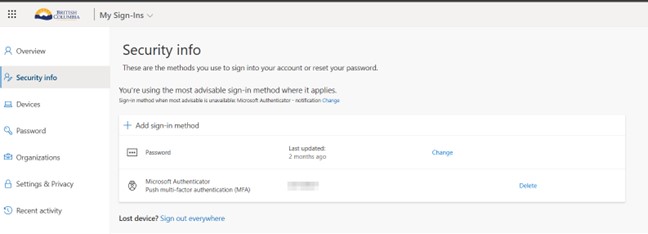
If you’re already MFA registered, you may receive a prompt to authenticate. Once you have successfully responded to the MFA prompt, the Security Info screen will display your MFA registered methods.
Click + Add sign-in method to register a new method, or click Delete to remove old ones.
If you’re prompted for MFA when you don’t expect it
If you’re prompted for MFA when you aren’t trying to access a B.C. government resource:
- Select No, it’s not me if you received an app notification
- Press 0, then # if you received an automated phone call
Then log into a trusted device and change your account password.
Do not approve an MFA request if you didn’t initiate it. Instead, report it to your organization’s IT support team immediately. Check your account for any unusual activity or updates you didn’t make and include the details of anything unexpected, such as changes in your account settings or a new device added that you didn’t authorize.
If you accidentally approve the MFA request in error, log into a familiar device, change your account password and contact MFA@gov.bc.ca immediately.
If your account is blocked
If you deny an MFA verification request, your user account may be blocked from accessing linked services and applications until your account password is reset. If this happens, or if you encounter any other issues with B.C. government MFA registration, authentication or responses, contact MFA@gov.bc.ca.
Content by
CSBC Technical Direction Division
Contact
ims@gov.bc.ca